ZX Vision — Start Here
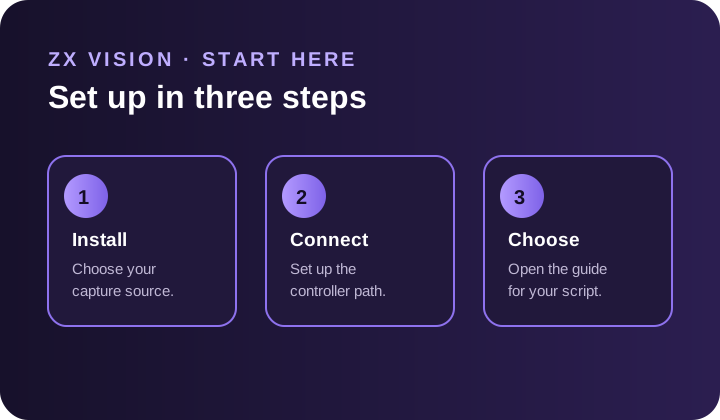
Follow the three steps to install ZX Vision, connect a controller, and choose a script.
ZX Vision is the Windows app that runs your scripts. Set up your video and controller connection, then follow the guide for the script you want to use.
Before you begin, check PC requirements and hardware. All output modes are included at no extra charge.
Follow These Three Steps
Step 1: Install & Capture
Install ZX Vision and choose your game video.
Step 2: Connect Your Controller
Follow one guide for your console or PC.
Step 3: Choose Your Script
Open your script's guide for its settings and first test.
Choose Your Setup
Choose the setup you plan to use. These are listed from easiest to more involved:
- Console — Titan Two — capture-card video. Titan Two hardware; PS5 may need a routing device.
- PS5 — Remote Play — capture-card or built-in Remote Play video. Wired Ethernet between PC and PS5.
- Xbox Series — Remote Play (XStreaming) — capture-card video. Wired Ethernet and XStreaming Desktop.
- PC — Steam — Display Capture or OBS Virtual Camera. Virtual Controller software; no capture card needed.
Not installed yet? Complete Install & Capture before following your connection guide.
Already Set Up?
Open Scripts for your script's setup, settings, and help. Basketball's ZX Vision Link guide is part of its Basketball section.