PS5 — Remote Play
Use the PS5 built-in Remote Play output with or without a capture card.
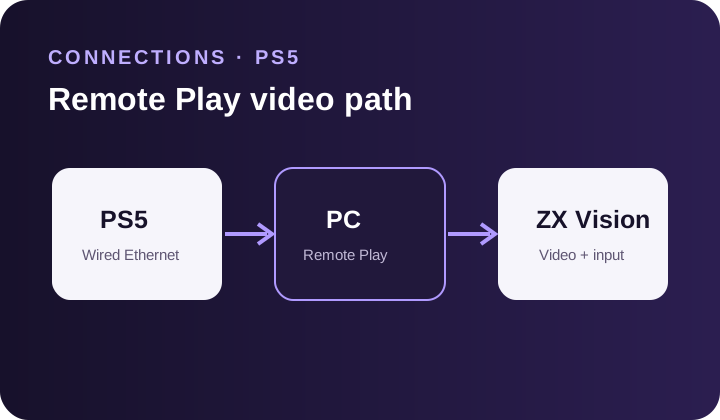
Connect your controller, then follow your selected script's guide. You should already have installed ZX Vision and signed in.
Use this page for PS5 with ZX Vision's built-in Remote Play, with or without a capture card. This output mode is included at no extra charge.
1. Prepare the Console and Controller
- 1. Enable Remote Play on your PS5.
- 2. Connect the PC and PS5 to the same network using wired Ethernet.
- 3. Connect your controller to the PC.
2. Add Your Account
- 1. In ZX Vision, set OUTPUT to PS Remote Play.
- 2. Choose your PS5 under Console.
- 3. Click Add beside Account.
- 4. Choose one account method below. Use the account signed in on your PS5.
Account methods:
- Username Lookup — enter your PlayStation username. Search privacy must allow Anyone to find you.
- Account ID — enter your Base64 Account ID if you already have it.
- PlayStation Login — click Open PlayStation Sign-In, sign in, and paste the Redirect URL or Code when prompted.
3. Connect Remote Play
- 1. Select your saved Account for the chosen console.
- 2. Choose your controller in Input Selection.
- 3. Click Start in the PS Remote Play output panel.
Wait for Connected, then check that your controller moves through the PS5 menus. If it does not connect, use PS Remote Play troubleshooting.
Repeat this connection order on later launches. Stop the active script session before changing output modes.
4. Choose Video and Start Your Script
Choose one video source:
- No capture card — set Source to Remote Play. Choose an offered resolution and FPS.
- Capture card — keep Source set to Device. Select your capture card.
- 1. Open your game on PS5.
- 2. Click Start beside the selected script name in ZX Vision.
- 3. Set the preview to Live.
The output button may show Managed while the script is running. Retry means the output needs to reconnect.
Ready Check
Your PS5 is connected, your controller responds, and ZX Vision's preview shows the game updating.
Next: choose your script guide. If the connection fails, use PS Remote Play troubleshooting. If the picture is missing or frozen, use capture troubleshooting.
Optional: Sound and Microphone
These controls are under Audio in the output panel:
- Sound chooses where console audio plays on the PC.
- Microphone chooses the microphone sent to the PS5.