Install & Capture
Install ZX Vision, choose a capture source, configure video, and select the right controller guide.
Extra Downloads — PC or Xbox Only
For Virtual Controller output:
- ViGEmBus — required. Reboot after installing or repairing it.
- HidHide — optional; helps prevent double inputs.
- XStreaming Desktop — for Xbox Remote Play only.
Titan Two and built-in PS5 Remote Play only need the main ZX Vision download from this page.
Choose Your Capture Source
Capture means the video ZX Vision sees. Pick one row and skip the other two:
- Console through a capture card — follow Capture Card.
- Game running on this PC — follow PC Display.
- PS5 Remote Play without a capture card — follow PS5 Remote Play Video.
Capture Card
Use this for Titan Two, Xbox/XStreaming, or PS5 setups with HDMI capture. See the supported cards.
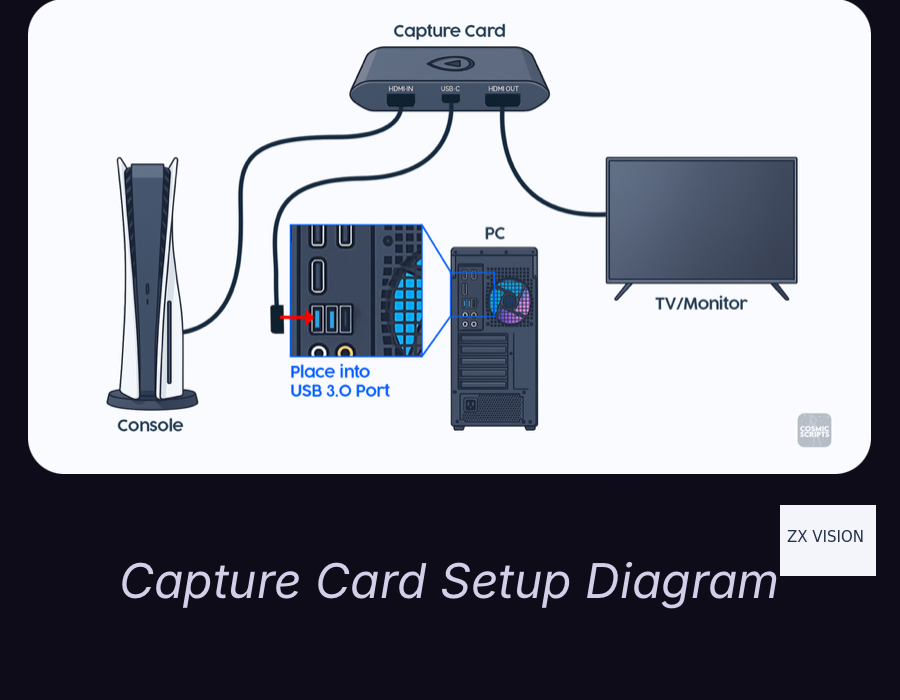
Connect the card:
- 1. Connect Console HDMI OUT to Capture Card HDMI IN.
- 2. Connect the USB capture card to a PC USB 3.0 port. Skip this USB step for an internal card.
- 3. Connect Capture Card HDMI OUT to the TV or monitor.
Console Video Settings
Check these after changing HDMI devices. PS5 HDCP must be off or HDMI capture will show a black screen.
#### PlayStation 5
- HDCP: Off — Settings, System, HDMI.
- HDR: Off — Settings, Screen and Video.
- VRR: Off — Settings, Screen and Video.
- RGB Range: Full — Settings, Screen and Video.
#### Xbox Series X|S
- HDR: Off — General, TV & display options, Video modes.
- Color Space: PC RGB — General, TV & display options, Video fidelity & overscan.
- Night Mode: Off — General, TV & display options.
- Color Filters: No correction selected — Accessibility, Color filters.
- High Contrast: Off — Accessibility, High contrast.
Select Your Capture Device in ZX Vision
- 1. Close OBS and other apps using the physical capture card.
- 2. Open Capture Settings, then set Source to Device.
- 3. Select your card from Device.
- 4. Start with Capture, Resolution set to 1080p and FPS set to 60 FPS.
- 5. Leave the automatically selected Format in place.
Check: your card's name appears in Device. If it is missing, follow capture-card-not-showing help.
Now connect your controller. You will check the live game picture after starting the session there.
PC Display — Steam
No capture card or separate output hardware is needed. Use Display Capture or OBS Virtual Camera with Virtual Controller output.
PS5 Remote Play Video
This is the PS5-only, capture-card-free option. It does not need OBS. Connect your PC and PS5 with wired Ethernet.
Continue to PS5 — Remote Play next. That guide connects the console first, then sets Source to Remote Play. The session must be connected before it can supply video.
Next: Connect Your Controller
Choose one guide:
- Console — Titan Two — the simplest console output setup, using Titan Two hardware.
- PS5 — Remote Play — built-in PS5 connection, with or without a capture card.
- Xbox Series — Remote Play (XStreaming) — XStreaming Desktop with Virtual Controller output.
- PC — Steam — Virtual Controller output with Display Capture or OBS Virtual Camera.
All output modes are included. Remote Play setups require wired Ethernet between the PC and console; Xbox still requires a capture card.
Additional Setup Reference
You can skip these unless another step sends you here.
- Network sharing — connect a console through your PC, with a wiring diagram and adapter choices.
- Capture settings & OBS — extra video controls and an alternative way to capture a PC game.
- Script guides — script-specific features and settings, including Basketball's ZX Vision Link.
ZX Vision does not guarantee competitive outcomes and does not promote unfair play. Users are responsible for following the rules of the games and services they use.