Console — Titan Two
Connect Titan Two for non-PS5 consoles and PS5 routing devices.
Connect your Titan Two, then follow your selected script's guide. This output mode is included at no extra charge.
Before starting, install ZX Vision and select your capture card using the capture-card setup. Have your controller, Titan Two, and data-capable USB cables ready.
For PS5, you may also need a P5General / P5Core, P5Mate, Cronus Zen, or Wingman FGC2 for controller routing. Follow one wiring option below.
1. Choose Your Wiring
Titan Two Setup (Non-PS5)
For non-PS5 consoles:
- 1. Connect Titan Two's PROG port to the PC.
- 2. Connect your controller to Titan Two's Input-A port.
- 3. Connect Titan Two's Output port to the console.
Continue to Set Up ZX Vision Output.
Titan Two Setup (PS5)
Choose the section that matches your routing device.
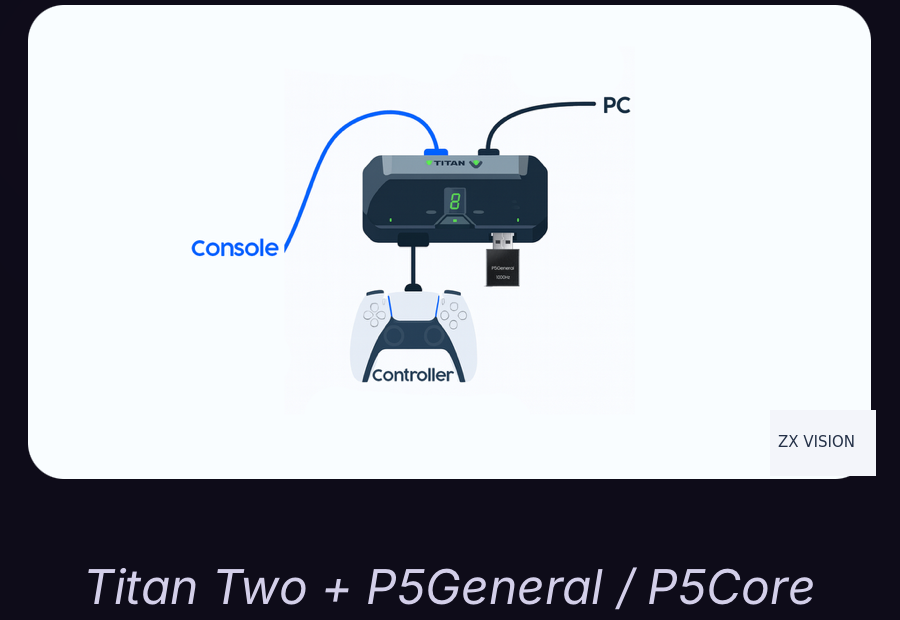
Titan Two + P5General / P5Core
Preferred PS5 method: P5General / P5Core. These are the same device under different names; use the same setup for either name.
Note: For P5General / P5Core, set Output Protocol to PS5 in ZX Vision.
- 1. Connect your controller to Titan Two's Input-A port.
- 2. Connect P5General / P5Core to Titan Two's Input-B port.
- 3. Connect Titan Two's Output port to the console.
- 4. Connect Titan Two's PROG port to the PC.
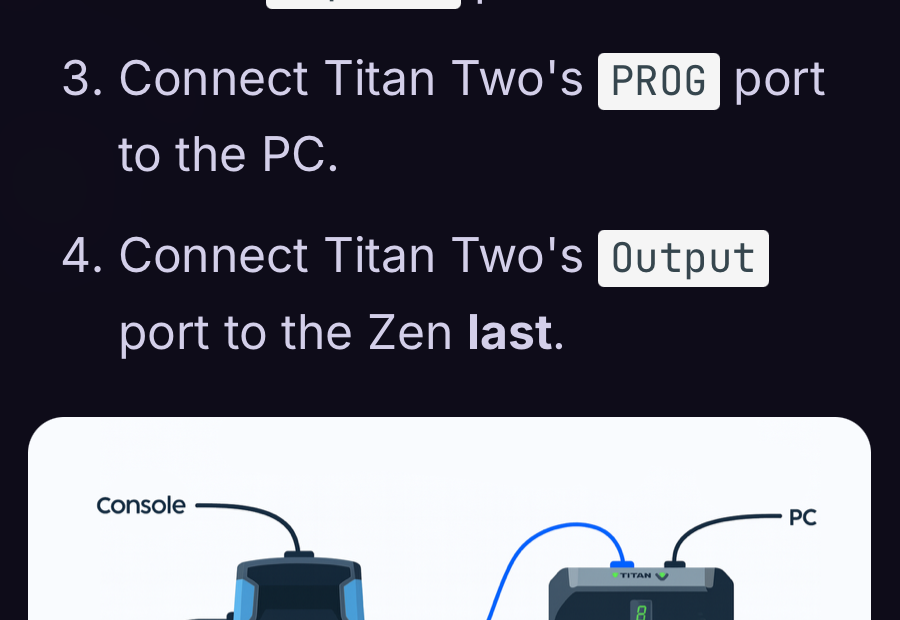
Titan Two + Zen Connection
- 1. Complete the Zen PS5 bypass steps.
- 2. Connect your controller to Titan Two's Input-A port.
- 3. Connect Titan Two's PROG port to the PC.
- 4. Connect Titan Two's Output port to the Zen last.
2. Set Up ZX Vision Output
- 1. Open ZX Vision.
- 2. Set OUTPUT to Titan Two.
- 3. Set Output Protocol to PS5 for P5General / P5Core. Otherwise, leave it on Auto unless your setup needs PS5 or XB.
- 4. Check Slots for ZX Vision Bridge.
If the bridge is installed and current, continue to the Ready Check. If it is missing or needs an update, program it below.
Program the ZX Vision Bridge
- 1. Click Program in the Titan Two output panel.
- 2. Check that Bundled Script shows the ZX Vision bridge.
- 3. Choose Slot 1, Slot 2, or Slot 3. This replaces that slot's current contents.
- 4. Choose Translator to DualSense Edge or Gamesir G7 Pro for that controller. Use None otherwise.
- 5. Click Program.
Wait for programming to finish. The bridge should appear under Slots. Select its slot card, or let ZX Vision select it when you start your script.
If slot information is missing, close GTuner IV and other apps using Titan Two, reconnect PROG, and use Reconnect when offered. If Bundled Script is missing, extract a complete current ZX Vision release again.
Ready Check
- 1. Open your game on the console.
- 2. Click Start beside the selected script name in ZX Vision.
- 3. Set the preview to Live.
Check the lights for your wiring:
- Standard wiring: 3 green lights.
- P5General / P5Core or a similar device connected to Input-B: 4 green lights.
ZX Vision shows Titan Two as connected, your controller responds in the game, and the live preview shows the game updating.